
Create a new email campaign
- In the navigation under Outreach, select Create a Campaign. If you previously started an email, you can find the previously created email under Email Newsletters in Draft status.
- Choose whether you want to Start with a blank slate or Choose from a template. The template library includes default templates included with your subscription. You can learn more about templates here. Alternatively, you can clone a previously sent email campaign and use that design.
- Begin to compose the email.
After selecting your framework, you can begin to Compose the Email.
Tip: We recommend using the clone email feature once you've designed an email from scratch or customized one of our global templates. You can clone a previously sent email by navigating to Outreach > Email Campaigns > Actions > Clone.
Choose a sender identity and subject line
Tip: Choose a Sender Identity and Subject Line first (you can always change before sending the email). If you save your work and come back to it later, you can find the email you previously worked on by the Subject Line you choose.
Your sender identity is the email address and host domain that your message will be sent from. To learn more about sender identities, check out About Sender Identities.
Next, choose the subject line for your email. We recommend creating subject lines that are short and topical. Ex: "District 99 News & Updates".
After choosing a subject line, you can move on to adding body content to your email using content and layout blocks.
Add content and layout blocks
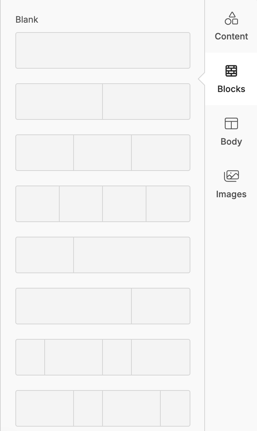
Use content and layout blocks to format and design your email. Add or remove different types of layout blocks to easily customize and rearrange the content you want to share. From the Blocks tab, add prebuilt layouts to create columned sections for your email.
In this section, we'll go over how to add, move, remove, and duplicate your content and layout blocks.
Add layout blocks
Layout Blocks create columned areas for the content you include in your email, providing layouts for you to place content as you see fit. You can also add, remove, or rearrange the content in your layout blocks with drag and drop.
To add a layout block to your email, drag and drop the layout you want to work with directly into your email.
After you’ve added a layout block, add or change content blocks within the layout as needed. Use the Body tab in the toolbar to customize your layout to fit your design.
Add content blocks
Content blocks are the building blocks for your email’s design and message. Check out About Parthenon's Email Builder to learn about each content block.
To add content blocks to your email, drag and drop the content you want directly into the desired layout block. The Content tab will open automatically. Drag and drop the content block you want to work with directly into your design.
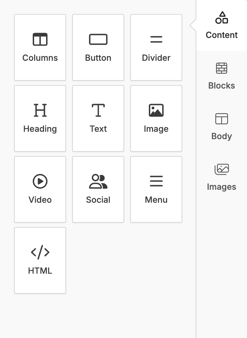
After you add a content block, use the content editing menu and toolbar to customize it to fit your design. Click an existing block to access its editing options.
Move, remove, or duplicate blocks and layouts
You can move most content and layouts anywhere in your template, or remove them as needed. You can also duplicate them to create an exact copy.
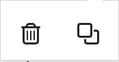
To move, duplicate, or remove content and layouts, click the one you want to work with to open the toolbar.
 (Drag icon) (Drag icon) |
 (Trash/Duplicate icon) (Trash/Duplicate icon) |
Click and hold the drag icon to move the content block to a new place in your email design. To make an exact copy of the block or layout, click the duplicate icon. If you want to delete the block or layout, click the trash icon.
Undo and redo changes
While you’re working on your email’s design and content, you can undo and redo any changes you’ve made.
To undo a change, click the undo arrow icon.
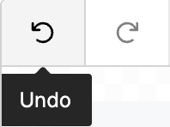
To redo a change that you've undone, click the redo arrow icon.
Preview and test your email
When you've finished designing your email, preview and test it to make sure everything looks right.
Preview your email
Preview mode gives you an idea of how your email will look in your recipients' inboxes on both desktop and mobile devices.
To preview your email in the content editor, select the preview icon. Once in preview mode, you can:
- Click Desktop, Tablet, and Mobile to see how your finished email design will look on these devices. You can also select from a list of commercially available devices to see more precise screen sizes.
- Enable Dark Mode to see how emails will render for recipients with dark mode enabled on their devices.
- Preview hyperlinks by hovering over the linked text with your cursor to view the link destination or clicking the link to ensure it takes you to the correct page.
- Click Exit Preview to return to the content editor.
Send a test email
To send a test email, follow these steps.
- From the content editor, click Send Test next to the Sender Identity box.
- Choose an email to receive the test message. This defaults to the email associated with your user account.
- Click Send Test Email.
It may take a moment for the message to arrive in your inbox.
Save and continue
When you’re finished designing your email, click Next to continue the email campaign creation process. The editor autosaves as you complete your work, so you can navigate away from the editor page at any time and come back to it later.
When you're ready to send an email campaign, check out Send an Email.