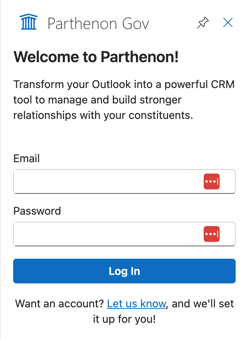
Before using Parthenon in Microsoft Outlook, the app must be installed and configured. Depending on whether you use the Outlook Desktop app or use Outlook in your preferred web browser, you may need to visit Microsoft AppSource.
NOTICE: In many organizations, Outlook Add-ins must be enabled by an administrator in the IT department. If you cannot access the Outlook Add-in store or cannot enable add-ins in the store, you will need to contact your IT administrator to enable Parthenon. If they are not familiar with the add-in store, please share this article with them for reference.
Using the Microsoft Desktop App:
Navigate to Outlook's main toolbar and select "Get Add-ins". This should open up a new window in your preferred web browser and take you to Microsoft AppSource, or it will open up a secondary Outlook window. Once in the store, search for "Parthenon Labs" in the search bar.
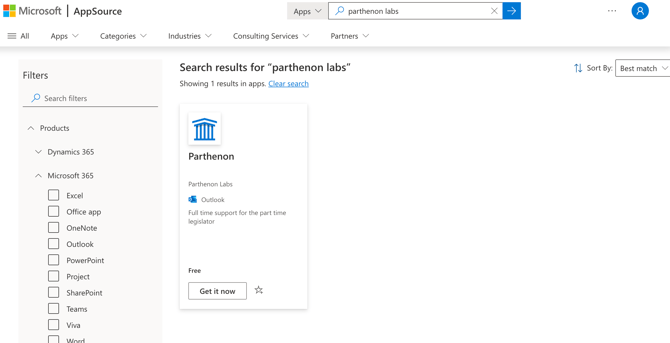
(Note: your Outlook store experience may look slightly different, but the steps should be the same.)
Select "Get it now" and agree to the Microsoft disclaimer to share your information with Parthenon Labs. Once selected, Microsoft should redirect you to a new page to assign users to access Parthenon's Add-in. In most cases, you will only be able to assign the add-in to yourself. You may need to contact your IT administrator to enable the add-in for other users in your organization. Select "Finish Deployment" and you will be ready to use Parthenon in Outlook.
Using the Microsoft app in your preferred browser:
Navigate to Outlook's main toolbar and select "More apps" and then select "Add apps +". This should navigate you to an apps page. Once on the apps page, search for "Parthenon Labs" in the search bar labeled "Search apps and more". Select the Parthenon Labs and select "Add".
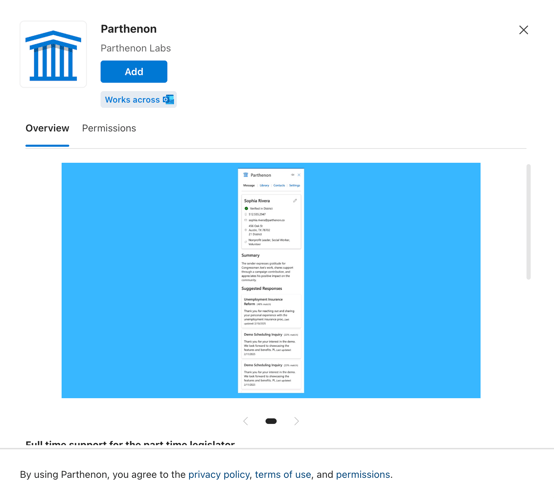
(Note: your app store experience may look slightly different, but the steps should be the same.)
After selecting "Add", you will be redirected back to your inbox and are ready to begin using Parthenon in Outlook.
Opening Parthenon in Outlook
Once the app is configured and ready to use, select the first email you want to log/respond and select the Parthenon app from the toolbar at the top of your inbox. You will be prompted to log in to Parthenon with your username and password. Login with the credentials provided by Parthenon and begin using the app.