
SMS campaigns let you send timely text messages to constituents directly to their mobile devices. In addition to standard text messages (SMS), Parthenon also supports multimedia messages (MMS), which allow you to include images, videos, and PDFs.
This article walks through how SMS campaigns work, how to create one, and how to understand delivery and engagement once a campaign is sent.
SMS vs. MMS: What's the difference?
SMS (Short Message Service)
-
Text-only messages
-
Supports emojis
-
Delivered quickly and reliably across all mobile devices
MMS (Multimedia Messaging Service)
-
Allows you to attach images, videos, or PDFs
-
Best for visual announcements or documents
-
May take slightly longer to deliver than SMS depending on carrier and file size
Parthenon automatically sends your campaign as MMS when media is attached. If no media is included, the message is sent as standard SMS.
Creating a SMS or MMS Campaign
-
Navigate to Outreach > Create SMS Campaign
-
Give your campaign a name (you must do this before you can start editing the message)
-
Select your sender identity (this should default to the 10DLC number associated with your account
-
Enter your message content in the editor, including emojis.
-
(Optional) Attach media by dragging and dropping files into the editor, or by clicking to upload an image, video, or PDF
-
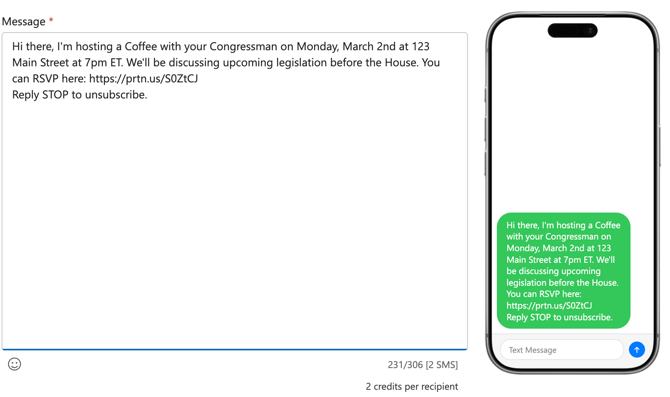
Review the real-time mobile preview to see exactly how your message will appear to recipients
-
Select the audience you want to send your message to
-
Decide whether you want to send the message immediately or schedule it to send at a later time/date
-
Review your work on the summary page and click Send
Once started, the campaign will queue to send at the time you selected.
Media Attachments (MMS)
When creating a MMS campaign, you can attach:
-
Images (e.g., JPG, PNG)
-
Videos
-
PDFs
Best practices:
-
Parthenon supports up to 5 images, videos, or PDFs up to a max file size of 5MB each
-
Use images for announcements or reminders
-
Use PDFs for flyers, notices, or official documents
Attached media will appear inline with the message on supported devices.
Link Shortening
If you choose to add a URL to your message, Parthenon will automatically detect the URL and ask you if you want to shorten the link. We recommend using Parthenon's built-in link shortening tools if:
- The URL is long and you need to cap your character count
- You want to track click through rate (CTR) in the campaign report after you send a message.
All links will be shorted to "prtn.us/XXXXXX", a domain owned and hosted by Parthenon Labs. The six characters after the domain will be generated by the system automatically.
Parthenon does support external link shortening (e.g. Bitly), but you will need to use that service's reporting tool to get link tracking insights.

Note: Your URL must have "https://" in order for Parthenon to detect the link.
Real-Time Message Preview
As you compose your message, Parthenon displays a real-time smartphone preview. This preview shows line breaks and spacing, emojis, and how attached media will appear. The preview is designed to closely match what recipients will see on their devices.
Sending Status & Delivery Metrics
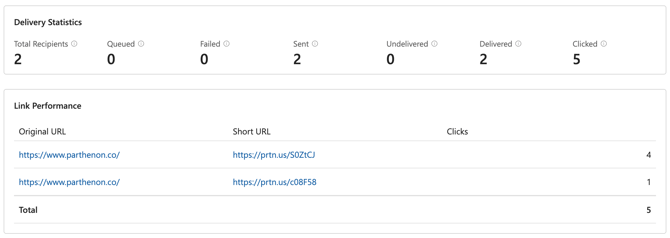
While a campaign is sending, the campaign detail view will automatically refresh to show progress.
-
Total recipients: The total number of recipients this campaign was sent to
-
Queued: Messages queued to be sent to the carrier network
-
Failed: Messages that could not be sent to the carrier network (invalid number, rejected, etc.)
-
Sent: Messages sent from Parthenon to the carrier network (includes delivered and undelivered)
-
Undelivered: Messages sent to the carrier but not delivered to the phone (phone off, blocked, etc.)
-
Delivered: Messages confirmed delivered to the recipient's phone
-
Clicked: Total number of clicks on shortened links in this campaign
Hover over any metric to see a tooltip explaining what it means.
Note: Delivery confirms that a message reached a device, not that it was read.
Campaign History & Engagement
SMS campaign activity is visible in multiple places:
Campaign Detail View
-
View sending progress in real time
-
Click recipients names to navigate to their profile
Person Profiles
-
View SMS campaign history for an individual
-
Filter history by message type
-
Click campaign names to open full campaign details
Compliance & Opt-In Reminder
SMS messages can only be sent to people who have explicitly opted in to receive text messages. SMS consent is tracked separately from email consent.
Make sure your audience includes only contacts with valid SMS opt-in before sending a campaign.
Note: Some government entities have different rules regarding opt-in. If you are unsure about your organization, please contact our Support Team for assistance.